
Setup DS4 on your PlayStation

In this guide, I’ll walk you through how to use a PS4 or Scuf Envision controller with Chiaki using DS4Windows, and I’ll also include my full video tutorial where I show everything step-by-step.
🎥 Full Video Tutorial
Instead of guessing your way through setup, you can follow the exact process here:
👉
What You Need
Before starting, make sure you have:
A DualShock 4 (PS4 controller) or Scuf Envision, or PS5 Controller
Chiaki installed (PS Remote Play client)
DS4Windows
A Bluetooth adapter or USB cable
Why You Need DS4Windows
Windows doesn’t always handle PlayStation controllers properly by default.
DS4Windows fixes this by emulating your DS4 as an Xbox controller, which ensures compatibility with most apps and games.
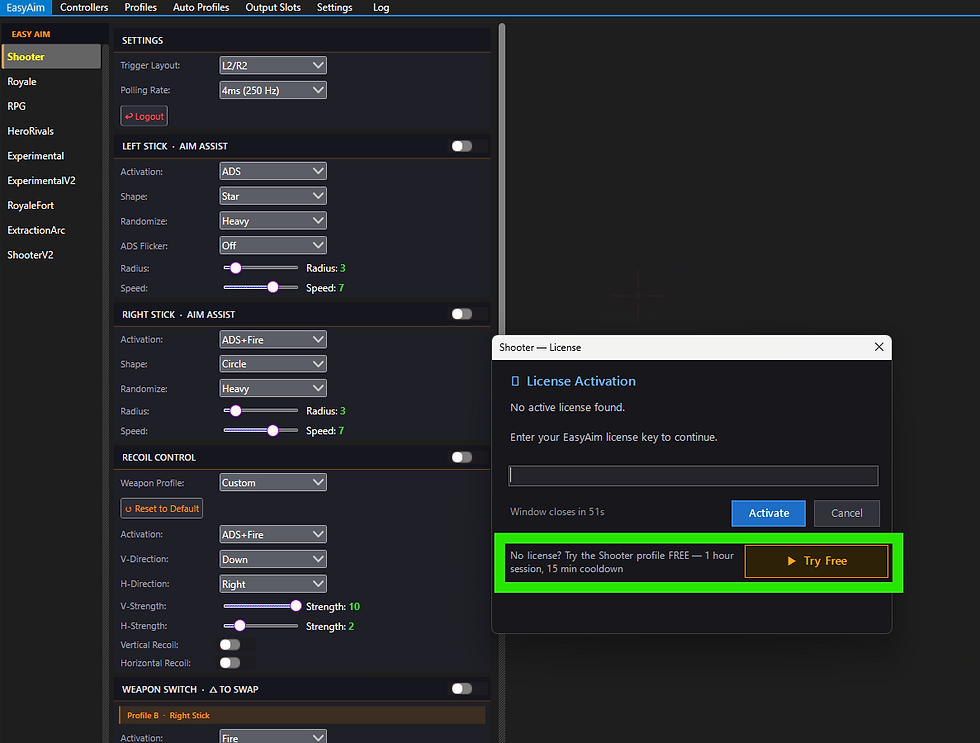
This is especially useful for Chiaki, since controller detection can otherwise be inconsistent. And if you use EASYAIM our custom DS4 than Chiaka is a must have.
Step 1 – Install DS4Windows
Download the latest version of DS4Windows
Extract the ZIP file
Launch DS4Windows.exe
Install required drivers (especially ViGEmBus)
Once installed, DS4Windows will detect your controller automatically when connected.
Step 2 – Connect Your Controller
You have two options:
Wired (Recommended)
Plug in via USB
Instant connection and lower latency
Wireless (Bluetooth)
Hold PS + Share until the light flashes
Pair it in Windows Bluetooth settings
Both methods work, but Bluetooth can introduce slight input delay.
Step 3 – Configure DS4Windows or use EASYAIM
Inside DS4Windows:
Make sure your controller shows as connected
Use the default profile (Xbox 360 emulation)
Optionally:
Remap buttons
Adjust sensitivity
Enable/disable touchpad behavior
Most users don’t need heavy customization—default works fine.
Step 4 – Launch Chiaki
Open Chiaki and connect to your PlayStation.
Chiaki supports controllers natively, including:
Analog sticks
Triggers
Face buttons
Touchpad (in some configurations)
If everything is set correctly, your DS4 should work immediately.
Step 5 – Fix Common Issues
Controller Not Detected
Make sure DS4Windows is running
Check that it’s emulating an Xbox controller
Double Input Problem
Use HidHide (optional DS4Windows driver)
Or disable other controller inputs in Windows
Input Lag
Switch from Bluetooth → USB
Close background apps
Pro Tips
Use wired connection for competitive games
Keep DS4Windows running in the background
Avoid using multiple controller tools at once (Steam Input, etc.)
Final Thoughts
Using EASYAIM with Chiaki is actually very smooth once set up correctly.
The key is understanding that:
Chiaki supports controllers
But Windows needs help recognizing DS4 properly
That’s where DS4Windows comes in.
Want the Full Walkthrough?
If you want to see the exact setup (including troubleshooting and real gameplay), watch the full video here:
Comments